Shadowrocket is a paid client available exclusively on Apple platforms. The App Store is the only place to get it. Check the storefront account and the three details that verify the official listing before purchasing. Refer to the App Store page for pricing, device compatibility, and Universal Purchase availability.
Storefront and account region
Shadowrocket isn't available in the China mainland storefront. The country or region associated with your Apple ID determines which App Store storefront you see. Changing your device language to English or using a different search term won't change the storefront. The button on this page links to Shadowrocket's US App Store product page. Whether you can purchase it depends on the account used for the store, storefront availability, and account status.
When checking, distinguish the account signed in to the device from the account used for Media & Purchases. They may be different; purchase history belongs to the account that completed the transaction. Check the current storefront, then payment status and purchase history. This is more useful than repeatedly signing out or tapping the price button.
Before you buy · Verify all three details
Verify the official Shadowrocket listing
The name is only a starting point. Check the developer, official icon, and app ID together to avoid mistaking an app with the same or a similar name for Shadowrocket.
Developer and app ID
Check the developer details on the App Store product page. The full name should be Shadow Launch Technology Limited. Don't rely on the large title in search results, or treat a mention of Shadowrocket in the description as a substitute for checking the developer. Read the developer name in full and watch for similar spellings or a different company name.
The app ID should be 932747118, shown in the product page URL as id932747118. The main button on this page links to that product. Names and descriptions can be similar, but an app ID identifies a specific App Store listing. The developer name, icon, and ID should all match; don't proceed based on just one detail.
Compare with the official icon
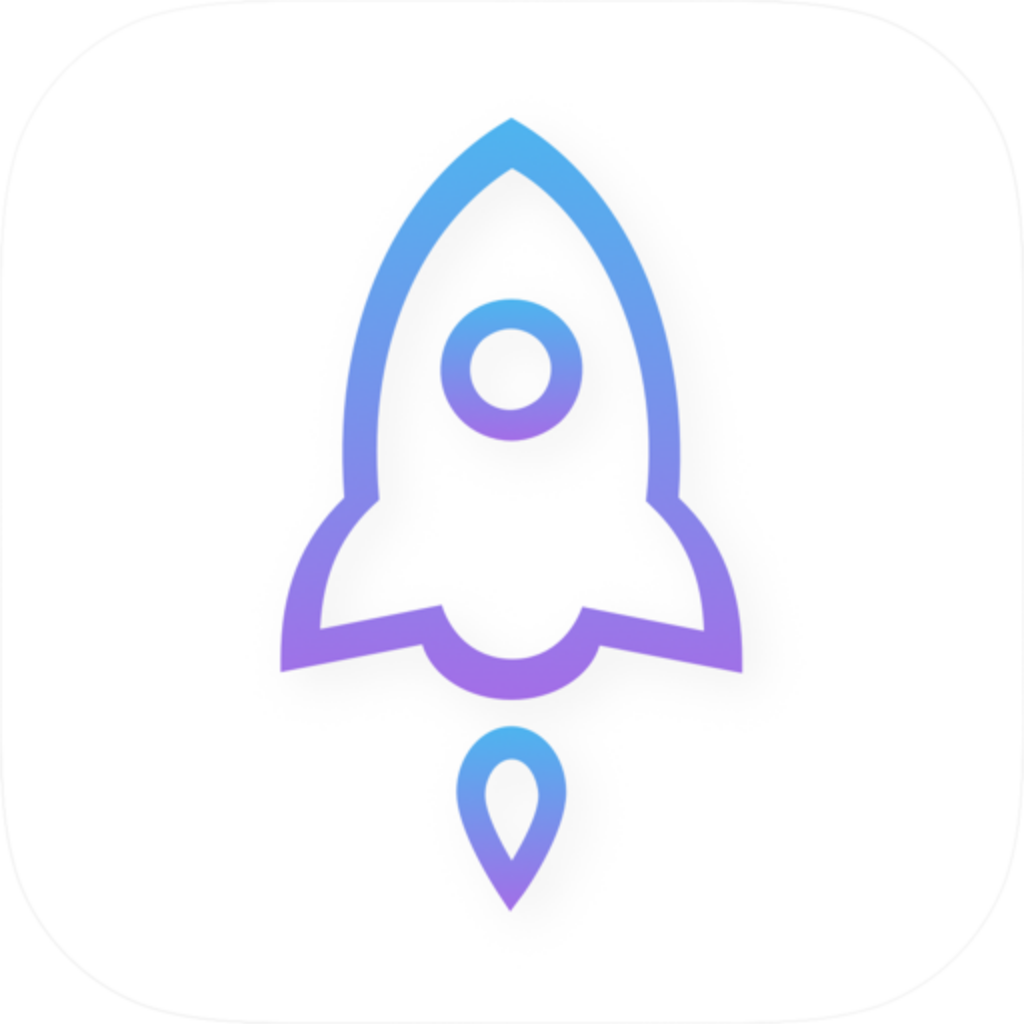
The official icon is a rocket outlined in blue and purple on a white background. Compare it with the icon here, then return to the product page to verify the developer and app ID.
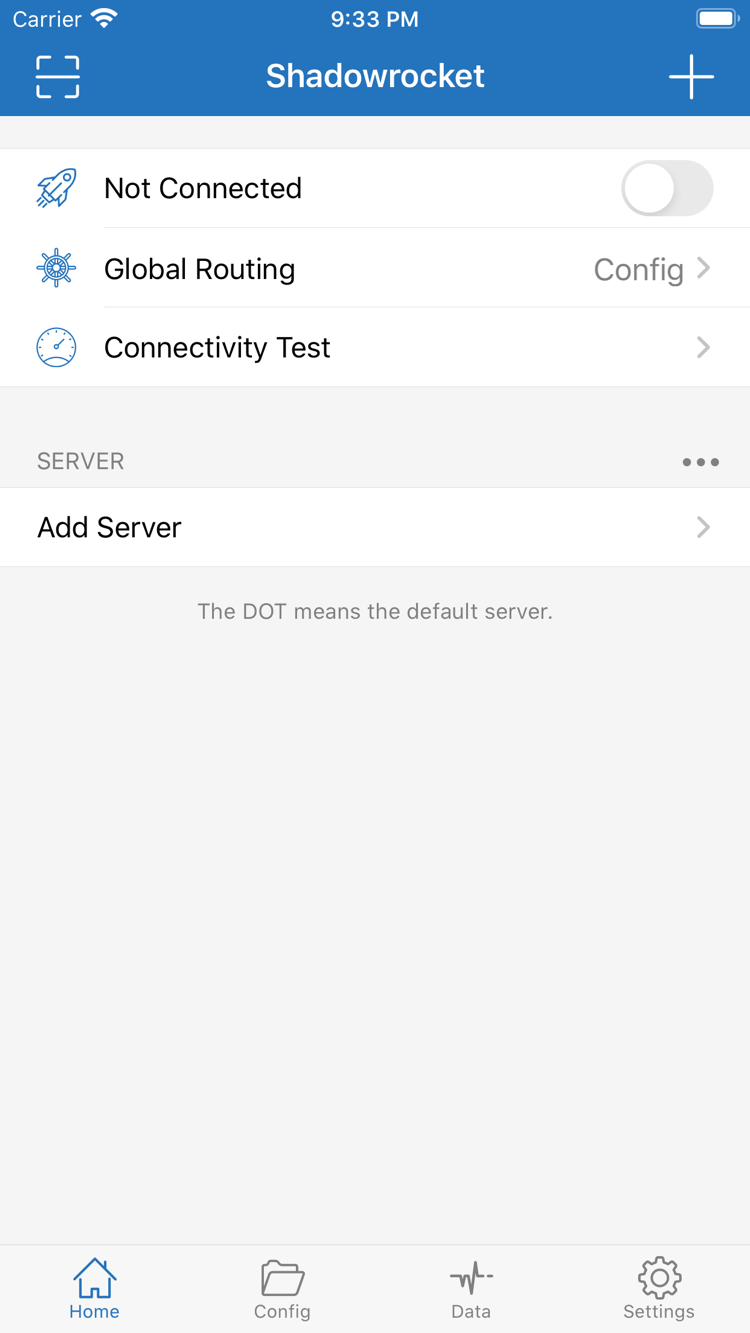
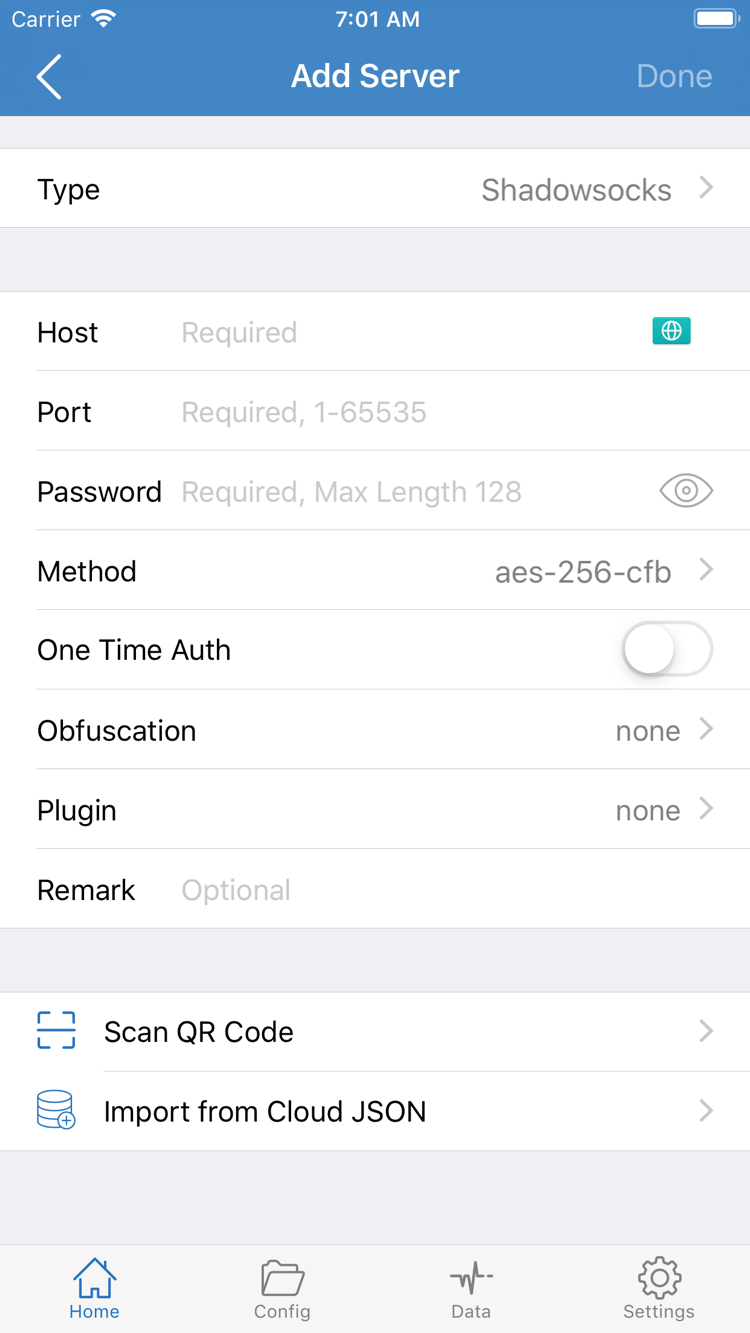
The two images on the right are official App Store screenshots uploaded by the developer. They can help you identify Home and Add Server. These are store assets, not a live view of your device's connection. App updates, interface language, and screen size can affect the layout, so visual similarity is only a supporting check and doesn't replace verifying all three App Store details.
In the Home screenshot, Not Connected, Global Routing, Connectivity Test, and SERVER are interface labels. The fields in Add Server are for entering details of a server you already have. Their presence doesn't mean buying the app includes access to a server. App installation and service configuration are separate steps.
Home · Connection switch and server listAdd Server · Enter details for an existing server
Device guide · iPhone
Get Shadowrocket on iPhone and open it for the first time
Complete the App Store purchase and installation first, then handle the in-app connection authorization. Confirming an App Store purchase and approving a VPN configuration are separate actions.
Check compatibility before buying
On iPhone, open the App Store product link on this page. Verify the name, developer, and app ID, then expand the compatibility details. Refer to the App Store page for system requirements; don't assume your device qualifies just because the app installs on another device. Before purchasing, also check the current price and payment account, then follow the system prompts to confirm.
After purchase, wait for the App Store installation to finish, then open Shadowrocket from the Home Screen or App Store. If it stays on a waiting status, check your network, available storage, and any App Store account messages. Opening the product page doesn't mean the purchase is complete. Check your purchase history and the button status instead of repeatedly submitting payment.
If you've already bought the app, first open your App Store account and check purchased items. The store account must match the original purchase account. Using the same account on your device for other services doesn't prove that it's also the App Store account. See the purchase restoration steps later on this page.
Understand first-connection authorization
When you're ready to connect, the system may ask for permission to add a VPN configuration. This lets the app handle connections through a network interface provided by the system. It isn't another purchase or a server account check. Make sure the prompt was triggered by Shadowrocket, which you just opened, and read it before confirming.
Opening the app for the first time doesn't mean it's ready to connect. You'll need to add details for a subscription or server you already have using Add Server or the appropriate import option, then check Global Routing and the current Config. An empty list or a connection that hasn't started doesn't mean the app purchase failed.
If you didn't approve the configuration earlier, return to the app and start a connection again, then check the device's VPN configuration status. Work- or school-managed devices may have configuration restrictions; follow the message shown on your device. Repeatedly approving the prompt won't help diagnose the issue.
Install Shadowrocket on iPad and check Universal Purchase
Use the same Apple ID purchase history to get the app on another device. Check the app purchase and in-app configuration separately.
Install using the same purchase history
You can use the same Apple ID purchase history to install Shadowrocket on iPhone and iPad. If you bought it on iPhone, open the App Store on iPad, confirm that Media & Purchases uses the original purchase account, then find the app under purchased items. You don't need to pay a second time just because you're using a different device type. If a price still appears, check your purchase history first.
The wider iPad screen may arrange lists, navigation, and settings differently from the iPhone screenshots. Look for sections such as Home, Add Server, Config, and Settings rather than expecting every button to appear in the same place. Refer to the App Store page for Universal Purchase availability, device compatibility, and system requirements.
Installing the same app on two devices doesn't mean their server lists, current Config, or connection status will sync automatically. Before using the app on iPad, check whether your existing subscription or server details have been imported and approve the VPN configuration for that device. Check the terms of your existing service to see whether it allows simultaneous connections on multiple devices.
New device or reinstall · Find your purchase first
Restore a Shadowrocket purchase
Restoring confirms your App Store purchase eligibility. Check separately whether your subscription, server details, and Config are intact.
Reinstall with the original account
Open App Store → Account → Purchased, find Shadowrocket, and download it again. Depending on your system version, purchased items may also appear under sections such as Apps or My Apps; follow the labels on your account page. Downloading an app with the Apple ID used for the original purchase usually doesn't require paying again.
If you can't find it, check your purchase history to confirm that the purchase was for Shadowrocket and identify the account used. Then check the account used for Media & Purchases and the current storefront, and see whether the purchase was hidden. Not finding the app in search results is different from not finding it in purchased items; repeatedly searching for the name won't resolve both issues.
If you see a price button, don't pay again as a way to restore the purchase. Check the original purchase history first. If your purchase history, current storefront, and the displayed status don't match, use the support option on your App Store account page. Family Sharing availability depends on the App Store listing and the current Family Sharing account details; don't assume every family member automatically has the same purchase access.
Check your configuration after installation
After reinstalling, check whether Home shows a server, then check which configuration is selected in Config. The app purchase doesn't include the validity period of your service or confirm that a subscription is up to date. If your data wasn't restored, import details from a subscription or server you already have.
If you still have access to your old device before switching, check your subscription records, server fields, and current configuration file. This can help you avoid finding missing details only after moving to the new device. Protect subscription links, passwords, and server details; don't share sensitive information to troubleshoot.
Approve the VPN configuration on the new device separately. After importing your details, choose an appropriate Global Routing setting using the guide, then check the selected server and Connectivity Test results. App access, authorization, and a working connection are three separate things to verify.
Shadowrocket is a closed-source commercial app sold for a one-time payment; the client purchase isn't billed monthly. The reference price on the US storefront is $2.99; other storefronts show local pricing. Check the App Store page at checkout for the actual amount, tax details, and payment requirements. This page isn't a checkout screen, so confirm the price again in the system purchase prompt.
This distinction also matters when troubleshooting: after a successful App Store purchase, the app can be installed while your existing service may still need separate checks for account status, validity, server address, or subscription status. Likewise, having an active service doesn't replace purchasing the app through the App Store. Keep your app purchase record and service details separately; one doesn't confirm the other.
App updates are delivered through the App Store. Check your device's store settings for automatic updates, or look in your account's updates list for available updates. For current version information and update history, refer to the product page; this guide doesn't maintain a fixed version or date. If an item moves after an update, look for its English interface label rather than assuming the installation is faulty based on an old screenshot.
Before paying, make one final check: confirm the store account, verify that the developer and app ID match, check compatibility with your device, and understand the cost difference between the client and your existing connection service. Once confirmed, complete the purchase in the App Store, then follow the Shadowrocket setup guide to import your own details.
Download and purchase FAQ
Check the App Store message first, then review the relevant step. The answers below match this page's guidance on the storefront, devices, and restoring purchases.
Can't find Shadowrocket in the App Store? What to check first
First check the Apple ID used for Media & Purchases and its country or region. Shadowrocket isn't available in the China mainland storefront. Search terms in Chinese or your device's location won't change the storefront tied to your account. Then check content rating restrictions in Screen Time and verify app ID 932747118 using the product link on this page.
The App Store page opens, but the download won't complete. What should I do?
Read the specific App Store message first, then check your account's payment status, available storage, network connection, and device compatibility. If the purchase hasn't completed, check your account records before trying to confirm payment again. If it has, look under purchased items. Refer to the App Store page for system requirements.
Do I have to buy it again after changing or restoring my device?
Sign in with the Apple ID used for the original purchase, find Shadowrocket in your App Store account's purchased items, and download it again. You usually won't need to pay again. If a price appears, check the purchase account, purchase history, and current storefront. Reinstalling the app doesn't restore all in-app configuration; check your own subscription or server details separately.
Can I install it on iPad after buying it?
You can install Shadowrocket on iPhone and iPad using the same Apple ID's purchase history. On iPad, check that the App Store is signed in with the original purchase account, then look under purchased items. Refer to the App Store page for device compatibility, system requirements, and Universal Purchase availability.
Can I use the same App Store link on Mac, Apple TV, or Apple Vision?
The compatibility section on the same App Store product page lists Mac, Apple TV, and Apple Vision. Open the product page on the relevant device to check whether it's supported, system requirements, and Universal Purchase availability. Refer to the App Store page for details.
The app interface is in English. Which items should I check first?
Start by identifying Home, Add Server, Config, and Settings. Home shows the connection and server list; Add Server is where you enter details for an existing server; Config is for configuration files; and Settings contains app settings. This guide keeps interface labels in English so you can match them on screen. Interface language doesn't verify that an app is genuine.