Shadowrocket Setup Guide
Follow the steps in order: add your details, choose a mode, connect, verify, and troubleshoot. First establish one connection you can check; then adjust rules or automatic connection conditions. This guide covers only the settings needed to get started.
Suggested order: Start with Step 01 for your first setup. If the switch is on but access isn’t working as expected, go straight to Step 04. For protocol parameters, see the Protocol Guide; you don’t need to adjust advanced settings before your first connection.
Add Server / Subscribe
Choose the option that matches the details you have. After saving, check SERVER before connecting.
Open Shadowrocket, go to Home, and find Add Server. Before entering anything, identify what you have: details for one server, an updatable subscription URL, or a QR code containing server information. These are used differently. Don’t paste an entire subscription URL into Host, or import an ordinary web address as subscription data.
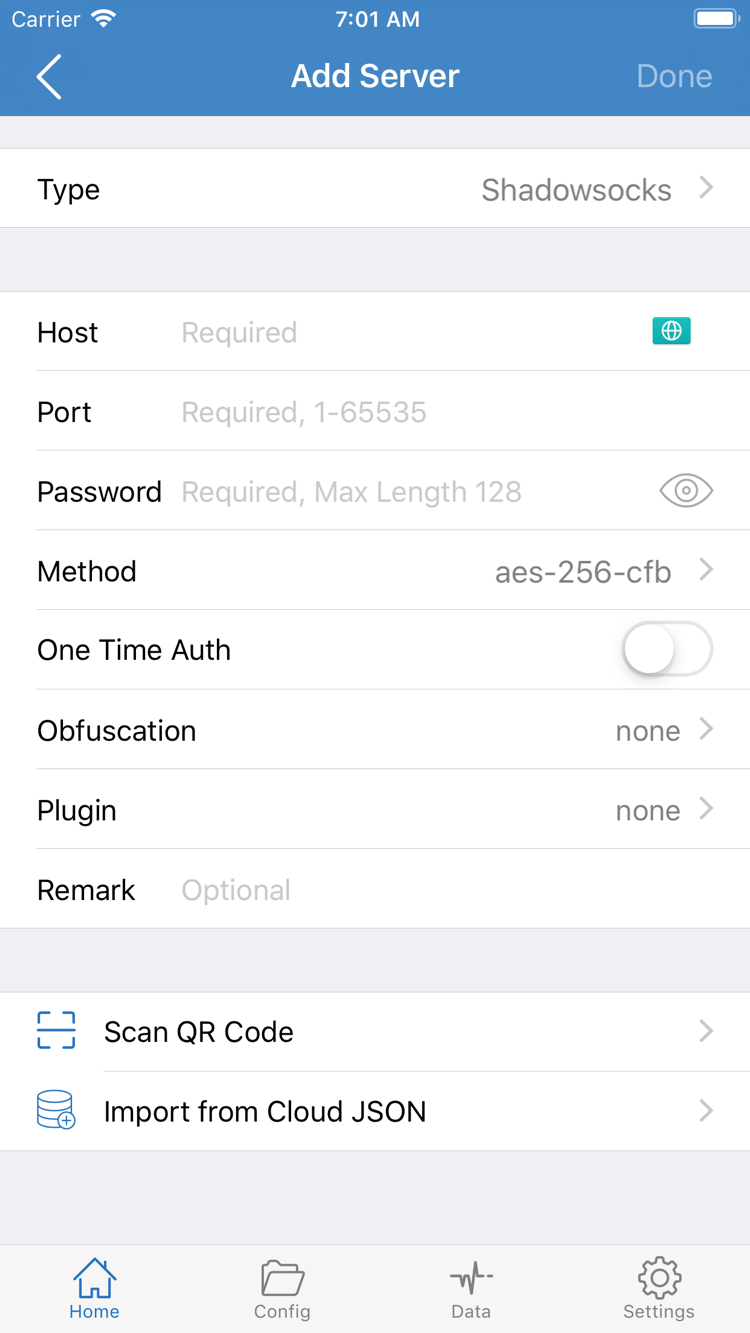
Enter Existing Server Details Manually
After opening Add Server, tap Type and choose the protocol that matches your server details. The type determines which fields appear; the screenshot shows one specific set of fields, not fields required by every protocol. Enter Host, Port, and the relevant authentication details as provided. Fill in fields such as Password and Method only when required by the selected type.
Check each value carefully, especially spaces around the address, the full port number, and case-sensitive authentication details. The server address, name used for TLS verification, and other transport settings may differ; don’t substitute one for another just because they look similar. Leave advanced fields unchanged unless your details specify otherwise. If you’re unsure about a field, see the parameter explanations in the Protocol Guide rather than guessing.
Import an Existing Subscription with Subscribe
If you have a complete subscription URL, choose Subscribe under Type in Add Server, enter the URL in the corresponding URL field, and save. Check that the copied URL is complete and contains no extra explanatory text. A subscription URL may contain credentials that provide access to your personal subscription; keep it private and don’t paste it into a public support request or screenshot.
After saving, return to Home and check the subscription group and its server entries. If it’s empty, check the subscription’s update status and use its update action to fetch the content again. Then see whether the list has changed. Saving confirms that an entry was added, but doesn’t guarantee the remote content can be retrieved or parsed. If the list remains empty, first check the complete URL and subscription status instead of repeatedly adding the same entry.
Check the QR Code Type Before Scanning
If you have a QR code, use Scan QR Code and grant camera access when prompted. After scanning, check whether it imported a server or a subscription, and verify the protocol and address. Import from Cloud JSON is a separate import option; use it only when you have data intended for that option. It isn’t a general-purpose field for pasting subscription URLs.
You’re ready to continue when SERVER shows an entry that matches your details and you can open it to check its fields. Keep one clearly identified test entry, then continue to Global Routing. See the Glossary for the differences between server entries, subscriptions, and configuration files.
The Three Global Routing Modes
Config / Proxy / Direct. Identify the active mode before checking the result.
After saving your server details, return to Home and open Global Routing. This setting determines how traffic is handled; it isn’t an alternative way to select a server. When troubleshooting for the first time, note the current mode. The same server may behave differently in different modes, so it’s easy to mistake a routing issue for a server issue.
Config: Use the Active Configuration
Choose Config for rule-based routing. Check the active configuration file under Config and confirm that its rules and policies match what you expect. Importing a subscription helps manage your server list; it doesn’t automatically provide rules suited to every use. Seeing a server in the list alone doesn’t tell you how the current configuration will handle a request.
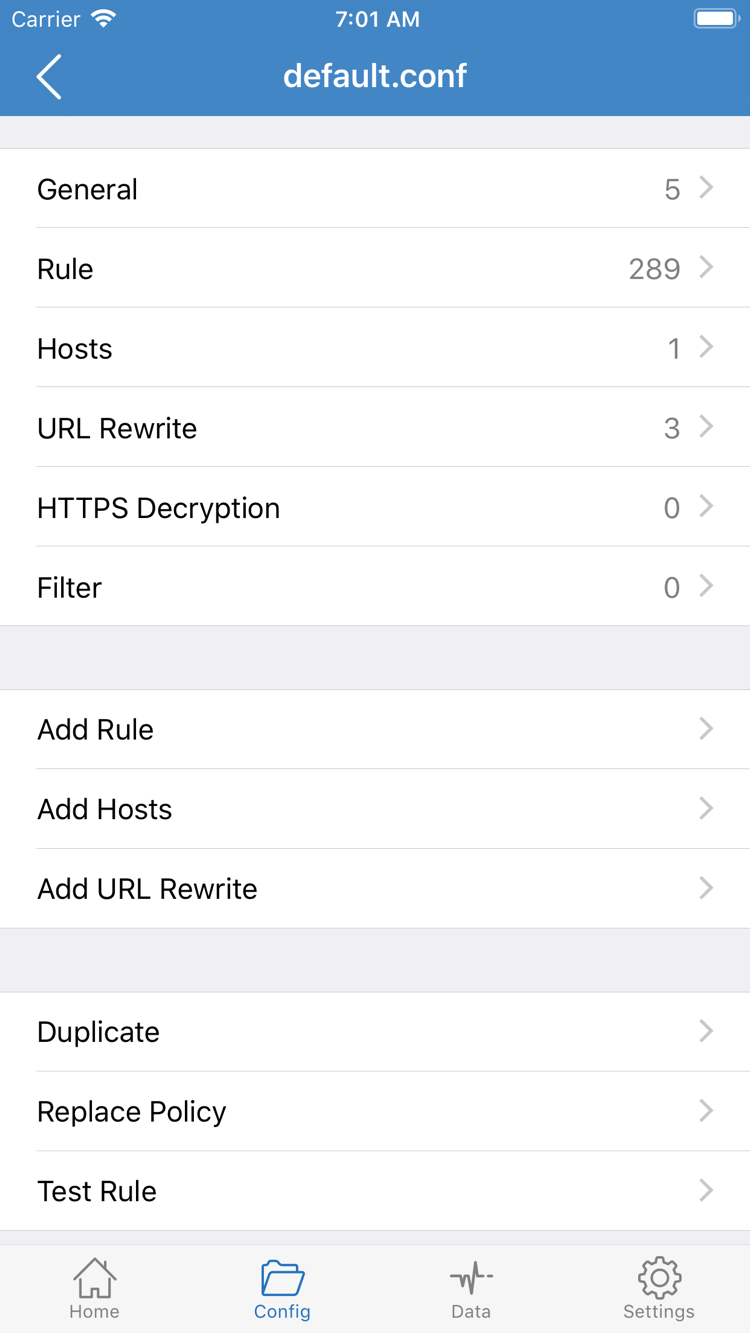
The official screenshot of the configuration editor shows sections such as General, Rule, Hosts, URL Rewrite, and HTTPS Decryption. To get started, just locate Rule and Add Rule; there’s no need to edit each section. In particular, don’t enable settings unrelated to your current task just to establish a basic connection.
When checking rules, start with their order, then check the policy applied when a rule matches. DOMAIN-SUFFIX matches domain suffixes; GEOIP matches based on an IP address’s geographic location; FINAL is the fallback policy when no earlier rule matches. DIRECT, PROXY, and REJECT affect how a request is handled. Here, PROXY is a rule policy keyword, distinct from the Proxy mode in Global Routing.
Proxy: Compare the Server Route
Proxy handles traffic using the proxy route and can serve as a comparison when troubleshooting. Keep the same server selected, switch to this mode temporarily, and try the same page. If the page works in Proxy but not Config, check the active configuration, matched rules, and related settings next—not every server field. This doesn’t guarantee that every server will work; verify access with an actual request.
Direct: Check the Local Network
Direct handles traffic without the proxy route and can help confirm that your Wi-Fi or cellular connection can reach the internet. If a page opens in this mode, that doesn’t confirm the selected server is working. After comparing, return to the mode you intend to use. For rule-based routing, switch back to Config and note the active Config before continuing.
For this step, decide which mode and configuration to use. See the Glossary for the full definitions of rule keywords. During your first verification, don’t change the mode, server, and configuration file at the same time; otherwise, it’s hard to tell which change affected the result.
Home: Select an Entry and Turn On the Switch
System permission, switch status, and actual access are three separate checks.
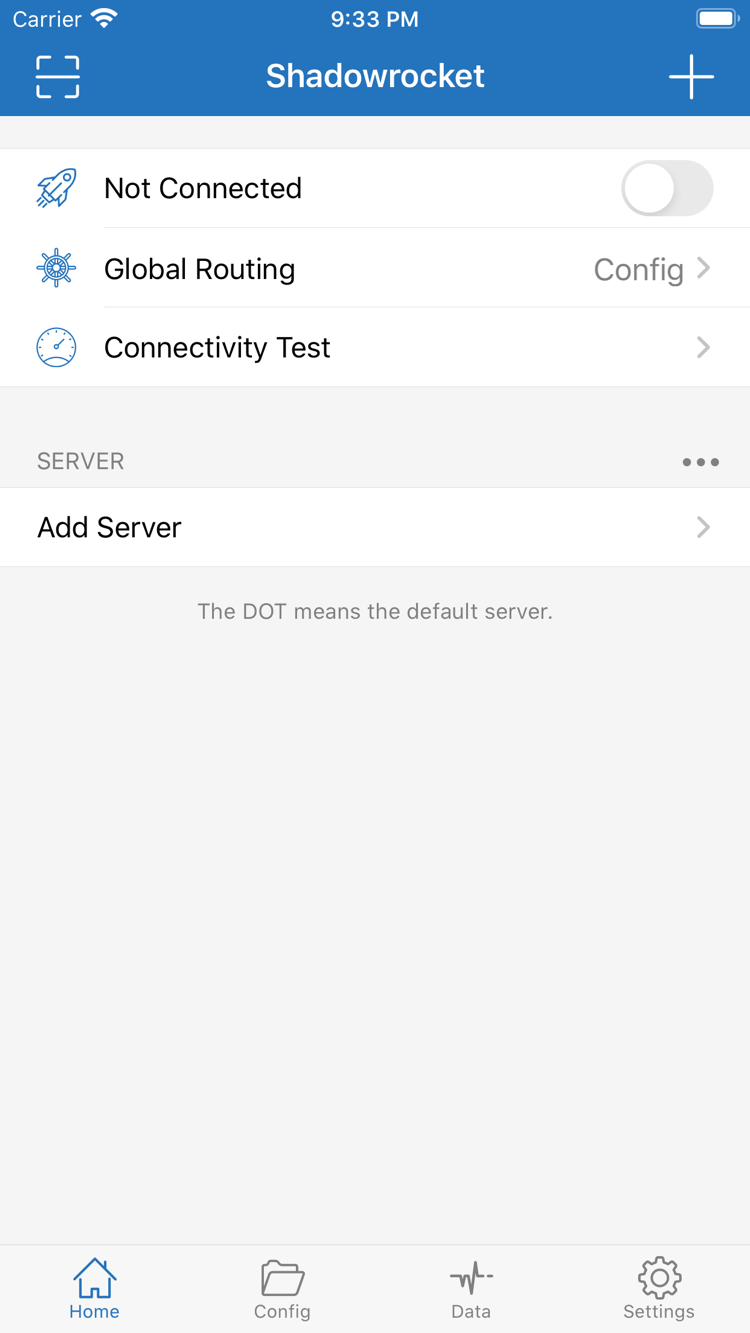
Return to Home and select the server you want to use under SERVER. Check the selection indicator and entry name. If your subscription has multiple entries, you don’t need to try each one; use a clearly documented entry to complete the full check first. Then check Global Routing again to make sure it’s still set to the mode you chose in the previous step.
When disconnected, the top of the screen shows Not Connected. After you turn on the connection switch, the first connection may prompt you to let the system add a VPN configuration. Read the prompt and confirm that you’re authorizing Shadowrocket, then follow the system instructions to approve it or authenticate your device. This permission sets up a system-level network connection; it won’t enter a server address or provide subscription details for you.
After granting permission, return to the app and check that the top switch and status remain connected. If you previously denied permission, try connecting again and review the system prompt; you don’t need to delete the server you imported. If the switch turns off immediately, note any error message, whether you just changed networks, and which server you selected. These details are more useful for troubleshooting than repeatedly tapping the switch.
The same process applies on iPad: select an entry, check the mode, then connect. The layout may vary by device and app version; use the interface labels and entry details to find the right options. During your first test, try to stay on the same network and avoid enabling other settings that change the system’s network connection.
To end the current connection, return to Home, turn off the switch at the top, and check the status. If it reconnects automatically later, check the On Demand conditions in Step 05 rather than assuming the switch is malfunctioning.
Connectivity Test and Real-World Access
Check these separately: a test returns a result, a page loads, and rules handle traffic as expected.
Keep the selected server and mode unchanged. On Home, run Connectivity Test. Once the result appears, open a page you use regularly and check whether it loads. Results depend on the test method, destination, and network conditions at the time. A latency figure isn’t sustained transfer speed and can’t predict video playback or the experience in every app.
If the test returns a result but the page won’t load, first confirm that both checks used the same network, server, and mode. Some pages also request resources from other domains, so seeing the initial page doesn’t mean every resource loaded successfully. Try another page that normally works as a comparison, rather than judging the entire connection from a single destination.
In Config mode, also check whether requests are handled by the expected policy. Review connection logs in the app to see requests and matching rules, then check the relevant rules in the active Config. If a request is handled by DIRECT, a working page doesn’t prove that the selected proxy server is in use. If it matches REJECT, first confirm that this is the intended behavior of the active configuration.
To compare modes, change only Global Routing and keep the server and test page the same. Note the differences between Config, Proxy, and Direct, then restore the mode you originally intended to use. Don’t infer the route from how a page looks, or keep changing every setting just to get a particular test result.
You can finish this first setup check when the selected entry is clear, the switch stays on, pages load, and Config handles traffic as expected. After that, adjust rules or automatic connection conditions one at a time as needed. If the issue remains, keep these comparison results and use the next step to narrow it down. See Frequently Asked Questions for more troubleshooting guidance.
Check Each Step in Order
Start with the first step that failed. Change one setting, test again, then decide what to check next.
Empty Server List: Check Subscribe
If no SERVER entries appear, don’t troubleshoot routing rules yet. Open the relevant subscription and check that the URL is complete, that you didn’t copy explanatory text along with it, and that the link is still valid. Then confirm that the update completed. If the subscription returns a login page or an error message, it may not produce a server list. Check the subscription status in your own service account, then update it again once you’ve confirmed the details. Avoid repeated imports that can make the issue harder to track.
Entry Exists but Test Fails: Check the Fields and Test Method
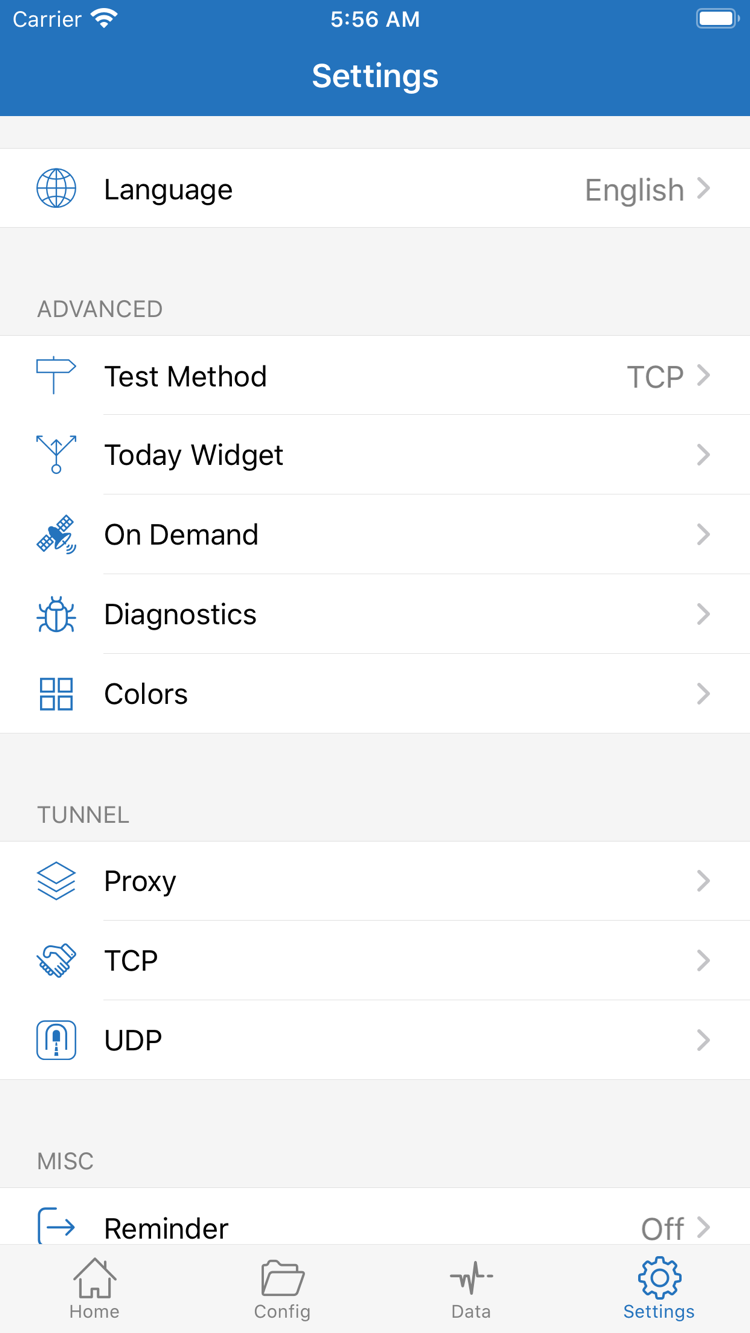
An entry in the list doesn’t guarantee its details are correct. Reopen it and compare Type, Host, Port, and authentication details with the original information. Check for missing TLS or other transport fields, if applicable. Then check Test Method in Settings. Different test methods measure different conditions; one timeout doesn’t prove that all access is failing. Check the results against actual page access.
Switch Turns Off or Changes Automatically: Check Permission and On Demand
If the switch won’t stay on, first check whether the system has allowed the VPN configuration and whether an error appeared. If it turns off and then reconnects on its own, check On Demand and its configured triggers in Settings. For an initial diagnosis, temporarily disable the relevant automatic conditions and see whether a manual connection stays on; decide whether to restore them afterward. Don’t repeatedly change several automatic behaviors without noting their original settings.
Proxy Works but Config Doesn’t: Check the Rules
For this difference, start by checking the active Config, the file in use, rule order, and final policy. Check whether the destination is matched too early by DIRECT or REJECT, and whether FINAL behaves as expected. Use connection logs to locate the specific request before changing the matching rule. Don’t delete the entire configuration just because one page won’t open.
Only Some Domains Fail: Check DNS and Network Differences
If some pages load but others consistently fail with the same server, check both DNS and routing rules. First revert any recent changes to the relevant settings and check for custom DNS handling in the active configuration. Switching between Wi-Fi and cellular can provide a comparison, but rerun the test and note the network change. Don’t replace a hostname with an arbitrary IP as a general test; this can also change domain handling, TLS verification, and server behavior.
Keep Sensitive Details Private When Using Diagnostics
Use Diagnostics in Settings to review diagnostic information. A useful report notes the step that failed, the mode, test method, error message, and whether only specific requests are affected. Before sharing logs, hide subscription URLs, authentication details, and personal connection information. Keep only the interface labels and error details needed to explain the issue.
After troubleshooting, revert temporary changes and repeat the sequence: select a server → check the mode → connect → test and browse. For more on protocol parameters, see the Protocol Guide. To check what a switch or keyword means, see the Glossary or Frequently Asked Questions. There’s no need to rewrite every setting just to complete your first setup.